
Video Tutorials
How to Install Real TV Box
This video tutorial walks users through the entire installation process of the Real TV set top box, making it easy even for first time users.
Here is the step by step installation:
- Remove all items from the Real TV package.
- Place the Real TV box near your TV.
- Connect the power adapter to the Real TV box.
- Plug the power adapter into the switchboard.
- Insert the HDMI cable into the Real TV box.
- Connect the other end of the HDMI cable to your TV.
- Turn on your TV.
- Select the correct HDMI input.
- Wait for the Real TV welcome screen to appear.
How to Update Your Real TV Box Software
Keeping your Real TV software updated ensures smoother performance, faster loading time and access to new features.
- Go to the Real TV home screen.
- Open settings
- Select device info
- Tap on System Update
- Check for new updates
- Click on Download
- Wait for the download to finish
- Select install update
- Allow the box to restart automatically
- Return to the home screen after installation.
How to add channels to favorites
This feature is especially useful for families who watch specific language channels every day. So,
- Open the Live TV section
- Scroll to the channel you want to save.
- Long press the OK button on the remote
- Select Add to favorites
- Repeat for all channels you want to save
- Open the favourites tab to view your saved list.
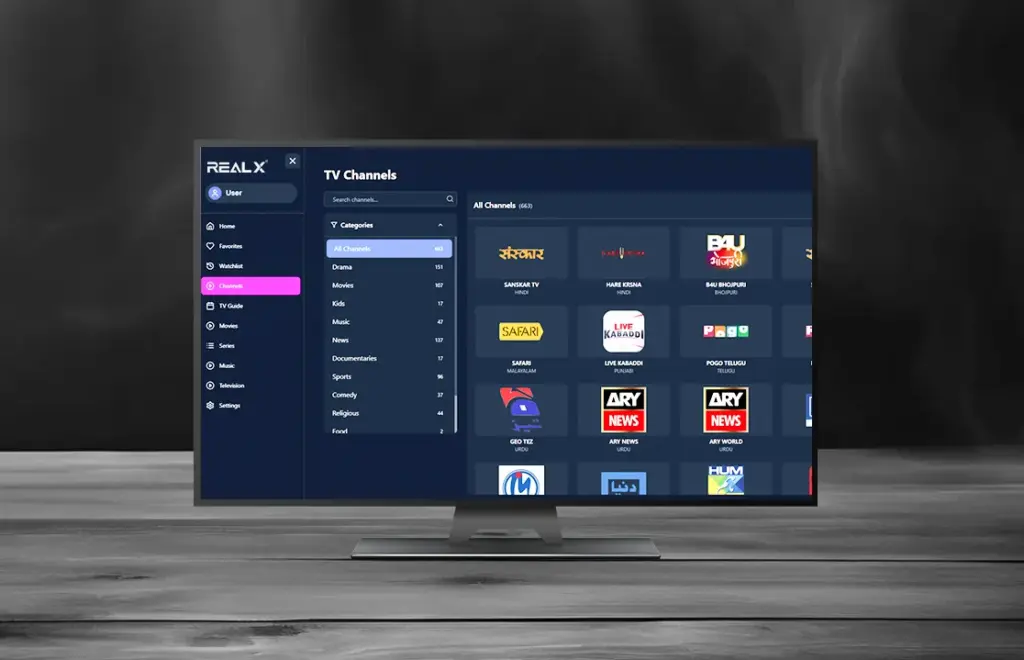
How to Watch Punjabi/ Hindi/ Malayalam/ Telugu Channels
Real TV offers a wide range of Indian channels across multiple languages. These steps help users quickly find their preferred categories:
- Go to the Real TV home screen.
- Select Live TV
- Scroll through the language categories
- Choose Punjabi, Hindi, Malayalam, Telugu or others.
- Select your preferred channel.
- Use left/right keys to switch channels quickly.
- Use the search option to type the channel name.
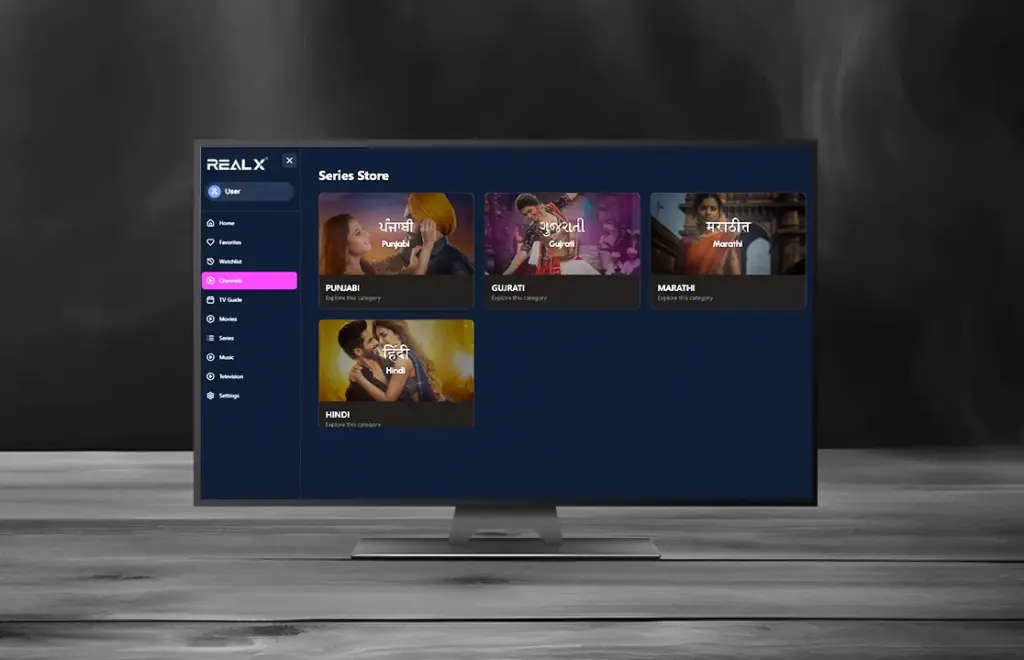
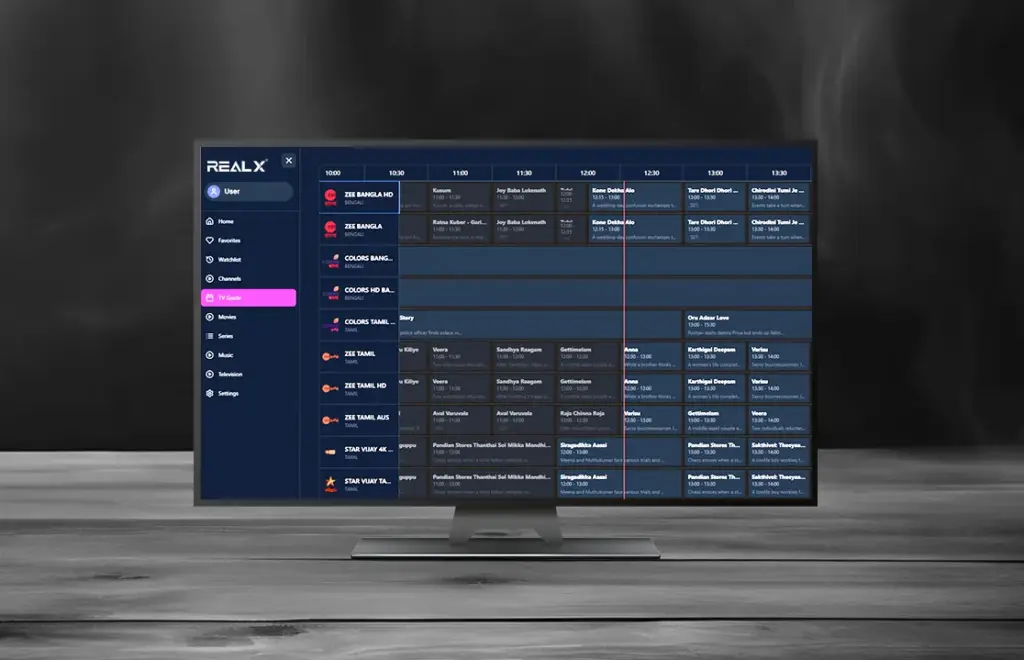
How to use EPG (TV Guide)
- Open Live TV
- Press the EPG/Guide button on the remote.
- View the list of current programs
- Scroll down for upcoming shows
- Scroll left or right to change days.
- Select any show to view its details.
- Press back to exit the guide.
How to record shows
- Open the channel you want to record
- Press the Record Button on the remote
- Confirm the recording prompt
- Allow the recording to run in the background
- Press the Stop button to end recording
- Open the recordings folder
- Select the recorded file and press Play
- Press the menu button to delete unwanted recordings