
Troubleshooting
Box Not Working
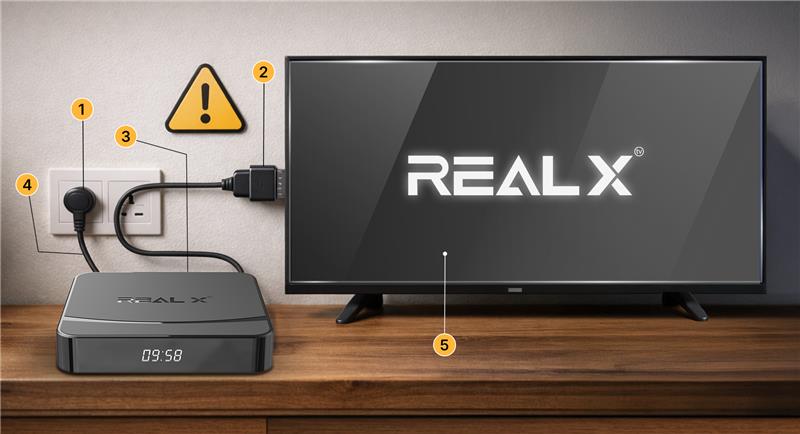
If your box freezes at the logo or does not start, follow these steps to bring it back to normal:
- Switch off the Real TV box from the power socket
- Wait for 10-15 seconds
- Turn the power back on
- Check the HDMI connection on both sides
- Try a different HDMI port on your TV
- Restart your Wi-Fi router
- Keep the box powered on for 2-3 minutes to load fully
Channels Not Loading
When channels don’t load, the issue is usually network or temporary app freeze.
Follow these steps:
- Return to the Home screen
- Close the Live TV section.
- Reopen the Live TV section
- Restart your router
- Check if other apps are working.
- Switch to another channel category
- Try using a LAN cable instead of Wi-Fi.
No Sound / No Video
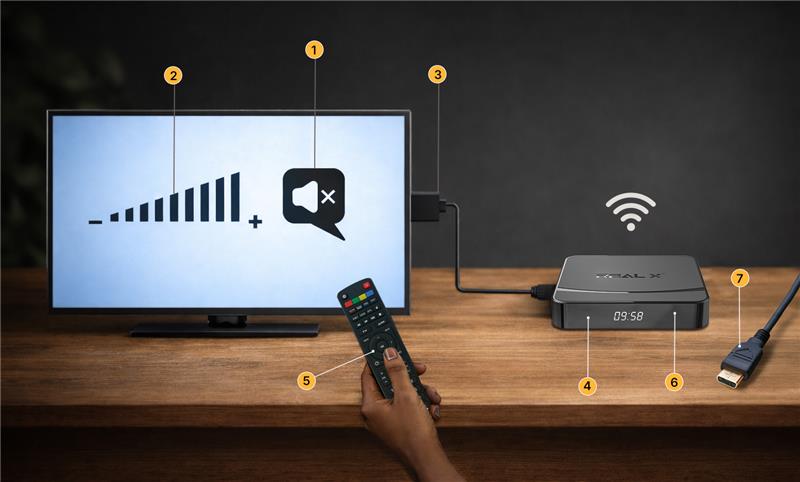
If audio or visuals disappear, use these quick checks:
- Increase the TV volume.
- Disable mute on your TV or remote
- Change HDMI input and return
- Restart the Real TV box
- Test another channel
- Check audio settings inside Real TV
- Use a different HDMI cable if needed
Remote Not Working
If the remote stops responding follow the steps below;
- Replace the remote batteries
- Clean the battery contacts
- Point the remote directly at the box
- Reduce distance between remote and box
- Try using the IR sensor directly
- Restart the Real TV box
- Test remote buttons one by one
App Crashing or Freezing
If the app stops working or freezes mid way use these steps:
- Go back to the home screen
- Close all running apps
- Reopen the Real TV app
- Restart the device
- Clear the cache from App settings
- Update your Real TV software
- Ensure uninterrupted internet connection
Buffering / Slow Playback
If videos load slowly, follow these network focused steps:
- Restart your Wi-Fi router
- Move the Real TV closer to the router
- Switch from Wi-Fi to LAN cable
- Close all background apps
- Check internet speed on another device
- Switch to a lower channel resolution
- Disconnect other devices using bandwidth
Wi-Fi Not connecting
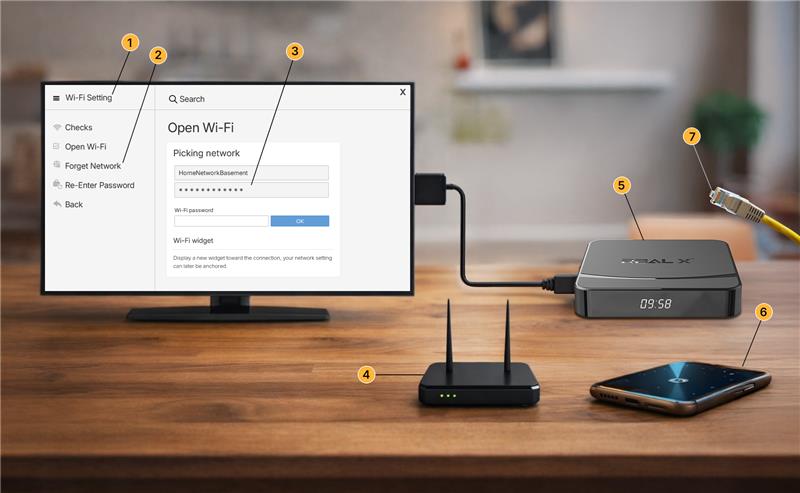
If Wi-Fi refuses to connect, try these quick fixes:
- Open Wi-Fi settings
- Forget the connected network
- Re-enter Wi-Fi password
- Restart the router
- Restart the Real TV box
- Try connecting to a hotspot
- Use a LAN cable if Wi-Fi remains unstable.
Reset Real TV Box (Soft & Hard Reset)
Use a reset when the device becomes slow or unresponsive.
Soft Reset
- Press and hold the power button on remote.
- Select Restart
- Wait for the box to reboot
Hard Reset
- Go to settings
- Open device preferences
- Select reset options
- Tap factory reset
- Confirm formatting
- Allow the device to reboot
Clear Cache
If apps are lagging. Clearing cache helps instantly.
- Open settings
- Go to apps
- Select Real TV app
- Tap clear cache
- Restart the box
Internet Speed Required
For smooth viewing, these speed levels work best:
- Minimum 10 Mbps for SD channels
- Minimum 20 Mbps for HD channels
- LAN cable recommended for stable speed.
Troubleshooting: No Signal / Slow Internet
No Signal
- Check HDMI cable on both ends
- Try another HDMI port on TV
- Change TV input to the correct HDMI source
- Restart the Real TV box.
- Restart the TV
Slow internet/Buffering
- Restart your router
- Move the Real TV box closer to the router
- Switch from Wi-Fi to LAN Cable
- Close unnecessary background apps
- Test internet speed on another device